How to Play Strands on iPhone, Android, Tablet and Desktop
Want to play Strands on mobile, tablet, or your laptop? NYT Strands is available across all your devices — no download required — making it easy to enjoy the daily word puzzle wherever you are. This guide walks you through exactly how to access and play Strands on iPhone, Android, tablet, and desktop.
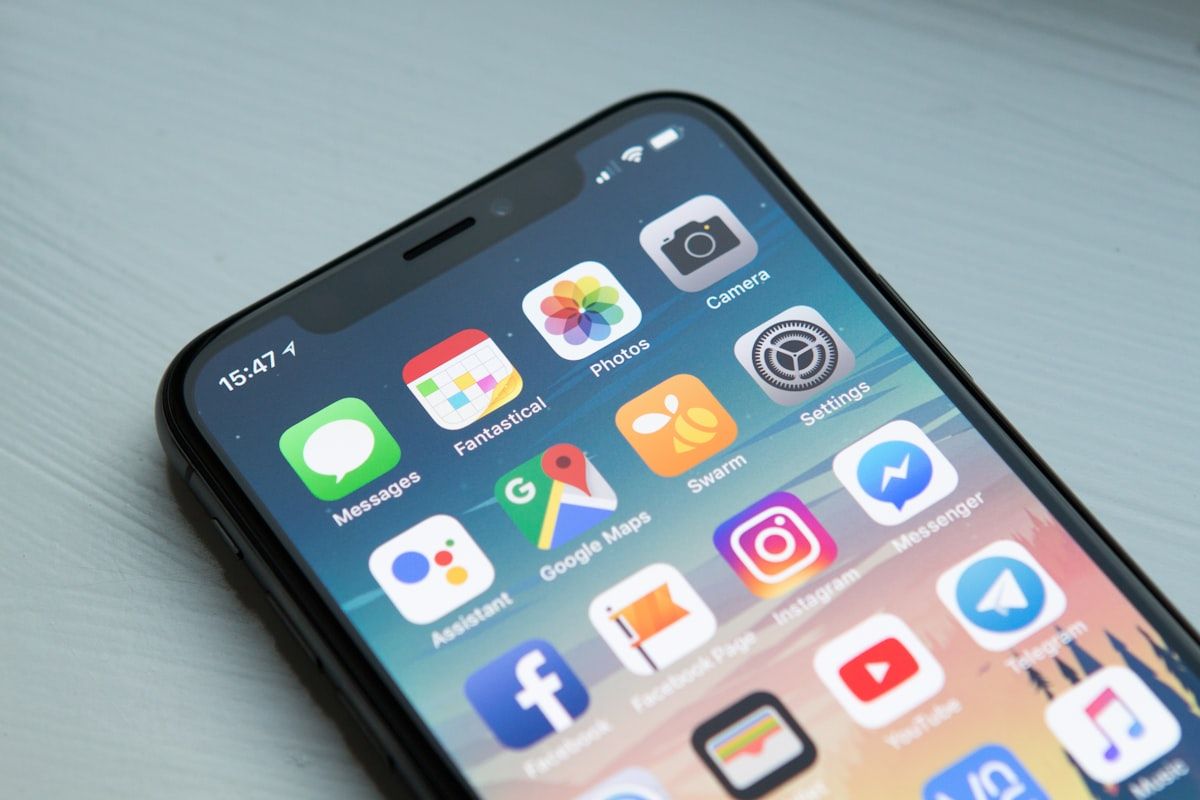
NYT Strands is one of the most popular daily word puzzles around, and the good news is you don’t need to be sitting at a desk to enjoy it. Whether you prefer to play Strands on mobile during your commute or tackle it on a big desktop monitor at home, the game is fully accessible across virtually every device and platform. Here’s everything you need to know to get started on any screen.
How to Play Strands on iPhone
Playing Strands on iPhone is straightforward, and you have two main options: your browser or the dedicated NYT Games app.
Using Safari on iPhone
Open Safari and navigate to nytimes.com/games/strands. The site is fully mobile-optimized, so the puzzle loads cleanly in your browser without any extra setup. You’ll need a free NYT account to play, and a subscription unlocks the full archive.
Using the NYT Games App (App Store)
For the smoothest experience, download the NYT Games app from the App Store. It’s free to install and brings Strands, Wordle, Connections, and more into one polished interface. Tap the Strands tile from the home screen and you’re in. The app handles notifications, streaks, and stats more reliably than the browser version.
How to Play Strands on Android
Android users have equally easy access to NYT Strands mobile, whether through a browser or the official app.
Using Chrome on Android
Launch Chrome and head to nytimes.com/games/strands. The responsive layout adapts well to Android screen sizes, and touch controls work exactly as you’d expect — swipe to connect letters and form words.
Using the NYT Games App (Google Play)
Search for NYT Games on the Google Play Store and install it for free. Strands on Android via the app offers a cleaner, faster experience than the browser, with smoother animations and easier access to your stats and streaks.
How to Play Strands on Tablet
Tablets are arguably one of the best ways to experience NYT Strands, thanks to the extra screen real estate.
iPad
On an iPad, open Safari or download the NYT Games app from the App Store — the same steps as iPhone apply. The larger display makes the letter grid much easier to read, and swiping across the board feels natural and precise. The puzzle layout scales up beautifully, giving you a near-desktop experience with the convenience of touch.
Android Tablets
On Android tablets, use Chrome or install the NYT Games app from Google Play. The Strands tablet experience on Android is similarly spacious, with the grid filling the screen in a satisfying way. If you’re using a tablet with a keyboard case, you can even type your guesses rather than swiping.
How to Play Strands on Desktop and Laptop
Strands desktop play is as simple as opening a browser tab. The game works on all major browsers with no plugins or downloads required.
- Chrome — Recommended for the fastest load times and smoothest performance.
- Firefox — Fully supported; works without any issues.
- Safari — Works great on Mac; the game renders cleanly.
- Edge — Supported on Windows; no configuration needed.
Just visit nytimes.com/games/strands, sign in with your NYT account, and start playing. On desktop, you use your mouse to click and drag across letters to form words.
Differences in Experience Across Devices
While the core puzzle is identical on every platform, the experience does vary depending on your device.
Screen size plays the biggest role. On a phone, the grid is compact and requires careful finger placement. On a tablet or desktop, the letters are larger and easier to target accurately.
Input method also shapes how the game feels. Touch screens let you swipe fluidly from letter to letter, which many players find intuitive and satisfying. On desktop, clicking and dragging with a mouse is precise but can feel slightly less fluid than swiping.
Layout and UI remain consistent across platforms, but the NYT Games app offers a marginally cleaner interface than the browser, with fewer distractions and faster load times.
Tips for Touch vs Mouse Controls
Touch (iPhone, Android, Tablet)
- Swipe slowly and deliberately — fast swipes can skip letters.
- Use your index finger for the most control; avoid using your thumb on smaller screens.
- Zoom in if the grid feels cramped on a small phone screen.
- Rotate to landscape on tablets for a wider grid view.
Mouse and Keyboard (Desktop/Laptop)
- Click and hold, then drag across letters — releasing the mouse submits your word.
- Plan your path visually before you start dragging to avoid backtracking.
- If your tablet has a keyboard, you can type letters directly in some browser versions.
How to Add Strands to Your Home Screen
If you play Strands daily, adding it to your home screen turns it into a near-native app experience.
iPhone (Safari)
- Open nytimes.com/games/strands in Safari.
- Tap the Share button (the box with an arrow pointing up).
- Scroll down and tap Add to Home Screen.
- Name the shortcut and tap Add.
The Strands icon will appear on your home screen just like any other app.
Android (Chrome)
- Open nytimes.com/games/strands in Chrome.
- Tap the three-dot menu in the top-right corner.
- Tap Add to Home Screen.
- Confirm by tapping Add.
You’ll now have a one-tap shortcut to your daily Strands puzzle.
Which Device Gives the Best Experience?
For most players, a tablet — particularly an iPad — offers the best overall Strands experience. The large touch screen combines the intuitive swipe controls of mobile with the visual clarity of a desktop display. The grid is easy to read, swiping is precise, and the NYT Games app runs beautifully on iPadOS.
That said, if a tablet isn’t available, the NYT Games app on iPhone or Android is the next best option for on-the-go play. And if you’re at a desk, desktop Chrome delivers a fast, distraction-free session. The beauty of NYT Strands mobile and desktop support is that no matter which device you reach for, a great puzzle experience is just a tap or click away.