How to Share Your Strands Results with Friends
Want to share Strands results with your friends after cracking the day's puzzle? NYT Strands makes it easy to share your Strands game results in a fun, spoiler-free emoji format. Here's everything you need to know about using the Strands share button and spreading the word across your favorite platforms.
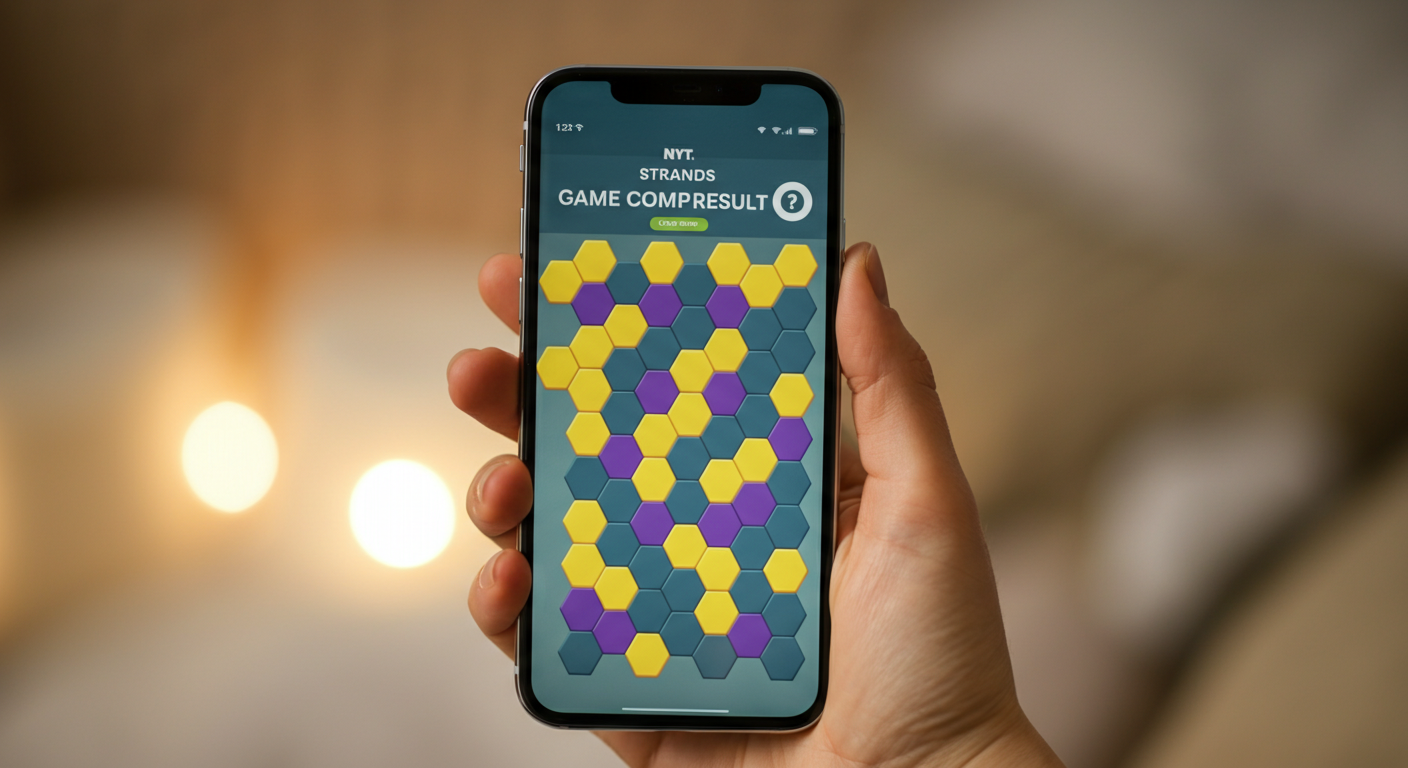
How to Use the Built-In Share Button After Completing a Strands Puzzle
One of the best features of NYT Strands is how simple it is to share your results the moment you finish. The Strands share button appears automatically once you’ve solved the puzzle, so you never have to hunt for it.
Here’s how to use it, step by step:
- Complete the puzzle. Find all the themed word groups on the board to trigger the results screen.
- Look for the Share button. A prominent “Share” button will appear on your results screen immediately after you finish.
- Tap or click “Share.” This copies your Strands emoji results to your clipboard — or opens a native share sheet on mobile devices.
- Choose your destination. Paste your results into any app, message, or social post you like.
- Send it off! Your friends will see your colorful emoji grid without any of the actual answers being revealed.
The whole process takes just a few seconds, making it one of the smoothest sharing experiences among NYT Games.
What the Shared Result Looks Like
When you share Strands game results, what your friends receive is a compact emoji grid — not a list of words or answers. This is by design, and it’s a clever way to show off your performance without spoiling the puzzle for anyone who hasn’t played yet.
Breaking Down the Strands Emoji Results
The Strands emoji results typically include:
- The puzzle number and date, so friends know which edition you played.
- A grid of colored circles representing each word you found and the order you found them.
- A spangram indicator, usually a special emoji or color, showing whether you found the bonus spanning word.
- Hint usage, reflected in the emoji pattern, so your friends can see if you needed any help.
Because the emojis only show colors and patterns — not letters or words — anyone who hasn’t played yet can safely view your result without having the puzzle spoiled.
How to Share on Every Major Platform
Once you’ve tapped the Strands share button, you can send your results virtually anywhere. Here’s a quick guide to the most popular platforms.
- Tap “Share” on the Strands results screen.
- On mobile, select WhatsApp from the share sheet, or paste the copied text into a WhatsApp chat.
- Send it to an individual contact or drop it into a group chat for maximum fun.
Twitter / X
- Tap “Share” and copy your results.
- Open Twitter/X and start a new post.
- Paste your NYT Strands share text into the compose box.
- Add a comment like “Today’s puzzle was tricky! 🧩” and post.
iMessage
- After tapping “Share,” select Messages from the iOS share sheet.
- Choose a contact or group thread.
- Your Strands emoji results will appear in the message field — just hit send.
- Copy your results using the Share button.
- Create a new Facebook post or story.
- Paste the emoji grid and add a caption to spark conversation.
Other Platforms (Slack, Discord, Email, and More)
Because the share feature simply copies plain text and emojis to your clipboard, you can paste your results into any app that accepts text — Slack channels, Discord servers, email threads, Reddit posts, or even a group text. The emoji format renders beautifully almost everywhere.
Tips for Sharing Without Spoiling the Answer
Even though the emoji grid is spoiler-free by design, a little extra care goes a long way when you share Strands results with friends who haven’t played yet.
- Don’t caption your post with the theme. The theme word is the biggest spoiler — keep it out of your message.
- Avoid describing the categories in your caption, even vaguely.
- Post at a reasonable time. If you play at midnight, consider waiting until morning so friends have a chance to play first.
- Use a spoiler tag on platforms that support it (like Discord) if you want to discuss the answers in detail.
- Ask before you tell. A quick “Have you done today’s Strands yet?” before diving into discussion is always appreciated.
Following these simple etiquette tips keeps the game fun and fair for everyone in your circle.
Why Sharing Results Builds Community Around the Game
There’s a reason the NYT Strands share feature has become such a beloved ritual for daily players. Sharing your Strands emoji results does more than just show off — it creates a shared experience.
When you post your results, you’re inviting friends into a moment of collective problem-solving. Did they find the spangram on the first try? Did they need hints? Comparing those tiny colored circles sparks genuine conversation, friendly rivalry, and a sense of belonging to a community of word lovers.
This is the same magic that made Wordle a global phenomenon, and NYT has carried that spirit forward with Strands. The daily cadence — one puzzle, one set of results, shared across millions of feeds — turns a solo word game into a social event.
How to Compare Results with Friends
Once everyone in your group has shared their Strands game results, the real fun begins: comparing how you each did.
What to Look For
- Order of discovery: Did your friend find the spangram first, or did they save it for last? The emoji sequence tells the story.
- Hint usage: Fewer hints generally means a cleaner solve — but there’s no shame in using them!
- Speed: While Strands doesn’t display a timer in the share output, you can always ask friends how long it took them.
Making It a Daily Ritual
Consider creating a dedicated group chat just for your daily Strands results. Many friend groups and families have turned this into a morning routine — sharing results over coffee and debating which category was the trickiest. It’s a low-pressure, high-fun way to stay connected every single day.
Whether you’re a seasoned NYT Games veteran or brand new to Strands, sharing your results is one of the easiest ways to get more out of the game. Hit that Strands share button today and see who in your circle is keeping up!